- FAQs
- Pogo SDK

Show/Hide all answers
How does the SDK and Pogo Connect actually work?
Using the special patent pending technology inside the Pogo Connect, combined with a very fast and efficient UITouch based detection routine, our SDK is able to distinguish any UITouch generated by a user’s finger, hand or wrist from that of one generated by our Pogo Connect Digital Pen.
Therefore when you are processing the UITouches detected by your application in the usual Apple delegate methods ( touchesBegan:withEvent: etc., ) then you can query each touch in sequence with our SDK to determine if that UITouch was generated with our Pen, or something else.
When you’ve determined it was indeed generated by the Pogo Connect, you can then ask the SDK to return the amount of ‘pressure’ that the Pen has detected.
Using these two messages combined with your drawing code means you can now not only show pressure that feels natural and accurate, but you can also add in palm rejection too!
What else can I do with your SDK?
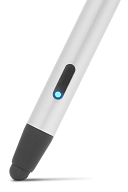
The Pogo Connect Digital Pen has a button on it, and also a multi color LED. The SDK will tell your application when that button is up or down, and you can send a UIColor to the Pen and set the LED to whatever color and intensity you like.
What if I / my users have more than one Pogo Connect?
No problem! We’ve build the SDK to handle multiple pens, and multiple apps - all at the same time! We even have a UIPopOver that will display available Pens, their connection status and additional details and settings.
If this popover doesn’t suit your app’s UX... no problem! We’ve added the ability for you to provide your own UIViewController based object to the SDK and it will show that one instead. And all the hooks we’ve used are exposed for you to use too. Nothings hidden and everything is available from simple message calls.
Great! So how do I start using it?
First off, you should make the main UIViewController object, in which it’s UIView will handle and display the drawing / inking, have a property that will hold the T1PogoManager instance.
Next inside your initialization code, instantiate that and assign the T1PogoManager Delegate as self:
self.pogoManager = [T1PogoManager pogoManagerWithDelegate:self];
Next you’ll want to tell Pogo Manager about the view in which the touches and drawing will occur:
[self.pogoManager registerView:self.view];
Be sure to add support for iPad 2. Even though it doesn't have Bluetooth 4.0, a lot of people use their iPhones to bridge the connection.
[self.pogoManager setEnablePenInputOverNetworkIfIncompatiblePad:YES];
Basically, that’s it!
There are other methods that you might want to use and messages you might want to pass - check out the header: T1PogoManager.h
Also, check out the method prototypes in the T1PogoDelegate.h file - these are all the callbacks that your UIViewController will get when Pogo Manager registers a state change.
How do I tell if a UITouch is from the Pogo Connect?
Inside each of your UIViewController delegate touch methods, you can perform this simple check:
if ( [self.pogoManager touchIsPen:touch] )
If that call returns YES, then it came from the Pogo Connect. In some cases, the type of touch can change. If you're doing palm rejection, we recommend you implement the pogoManager:didChangeTouchType:forPen: delegate method to handle any change. Compare pogoEvent.touchType with pogoEvent.previousTouchType. If a touch changes from a pen type to an unknown or finger touch, stop and undo the stroke.
How do I get the pressure from the Pen once I know which UITouch is associated with that Pen?
This is just as easy - simply call:
float pressure = [self.pogoManager pressureForTouch:touch];
You can now use that value inside your own drawing code to change the size or shape of a brush, change the color or anything else you can think of.
Do I ever need to start and stop the Pogo Manager when I’m not using it?
No, the SDK has been designed to take up a very small amount of memory when in use. Of course, you're welcome to nil or deallocate as necessary.
Most drawing or writing apps tend to have a main UIViewController where all the drawing is done. There may be others that represent menus, document management etc, but whenever this main drawing UIViewController is instantiated, that’s when you need to create and hold on to your reference of the SDK.
So should I just release / nil the Pogo Manager when I’m not using it?
Sure you can, if you like. We’ve designed and tested the SDK so that it’s only there when you want it and when you don’t, just release the object or set it to nil and it’s gone. It will clean itself up as it goes.
Note: Our SDK version 1.2 has an undocumented bug that causes a crash if T1PogoManager is deallocated while the registered view is still in use. The best workaround for now is to declare T1PogoManager's private deRegisterView: method:
- ( void ) deRegisterView:( UIView * )view;
If you can de-register the drawing view just prior to deallocating, the crash should no longer occur.
Note: Our SDK version 1.2 has an undocumented bug that causes a crash if T1PogoManager is deallocated while the registered view is still in use. The best workaround for now is to declare T1PogoManager's private deRegisterView: method:
- ( void ) deRegisterView:( UIView * )view;
If you can de-register the drawing view just prior to deallocating, the crash should no longer occur.
How fast does it perform?
Just for those speed freaks out there that might be worried about the overhead of all this UITouch evaluation that’s going on inside the SDK - fear not. Our lead developer has spent some time tracking this, and we’ve got this processing down to less than 257 microseconds - that’s less than 257 millionth of a second.
Where can I get more support?
If you’d like to talk to our Dev Team, for questions, queries, help, suggestions or even if you think you may have found a bug, please email:
devs@tenonedesign.com
and we’ll be more than happy to help.
Have fun and happy inking!

Pogo Manager SDK
Add pen pressure and palm rejection to your app.
It's free, and has simple integration with Xcode.
Pogo Connect is a best-selling pressure-sensitive pen for iPad. By adding support, you enable thousands of users to interact more intuitively with your app.
Shoot us a note, and we'll send you a brand new Pogo Connect for testing. For reals.
It's free, and has simple integration with Xcode.
Pogo Connect is a best-selling pressure-sensitive pen for iPad. By adding support, you enable thousands of users to interact more intuitively with your app.
Shoot us a note, and we'll send you a brand new Pogo Connect for testing. For reals.
Download the SDK (v1.2)
Make integration easy with code examples you can copy/paste (see T1PogoManager.h)
[SDK] | Release notes | Release history
[SDK] | Release notes | Release history
Download a sample project
See how easy integrating the Pogo Connect is, as well as the configuration options.
[Download]
[Download]
Try it live on the App Store
Procreate did a fantastic job integrating Pogo Connect.
iTunes Link
iTunes Link


